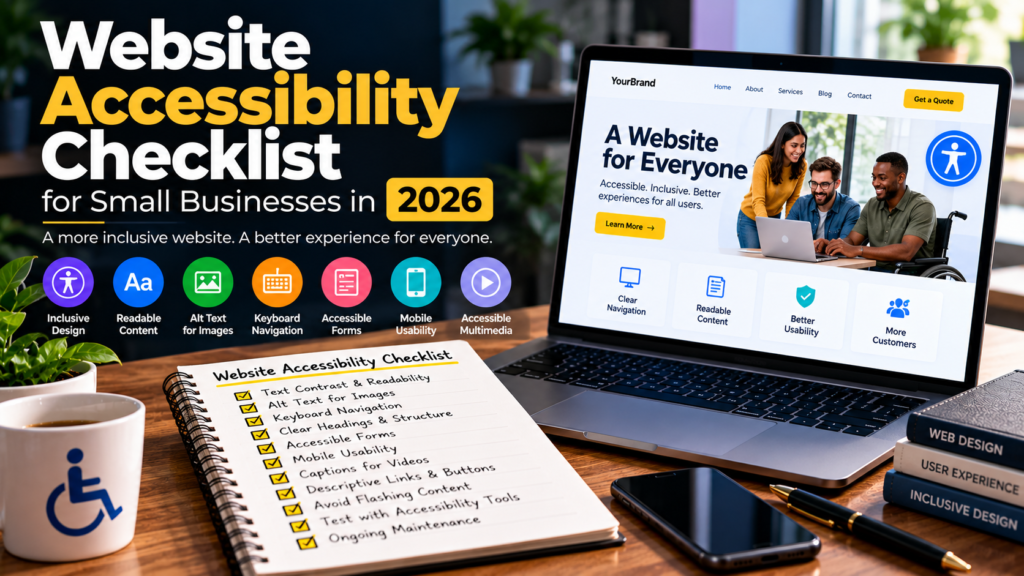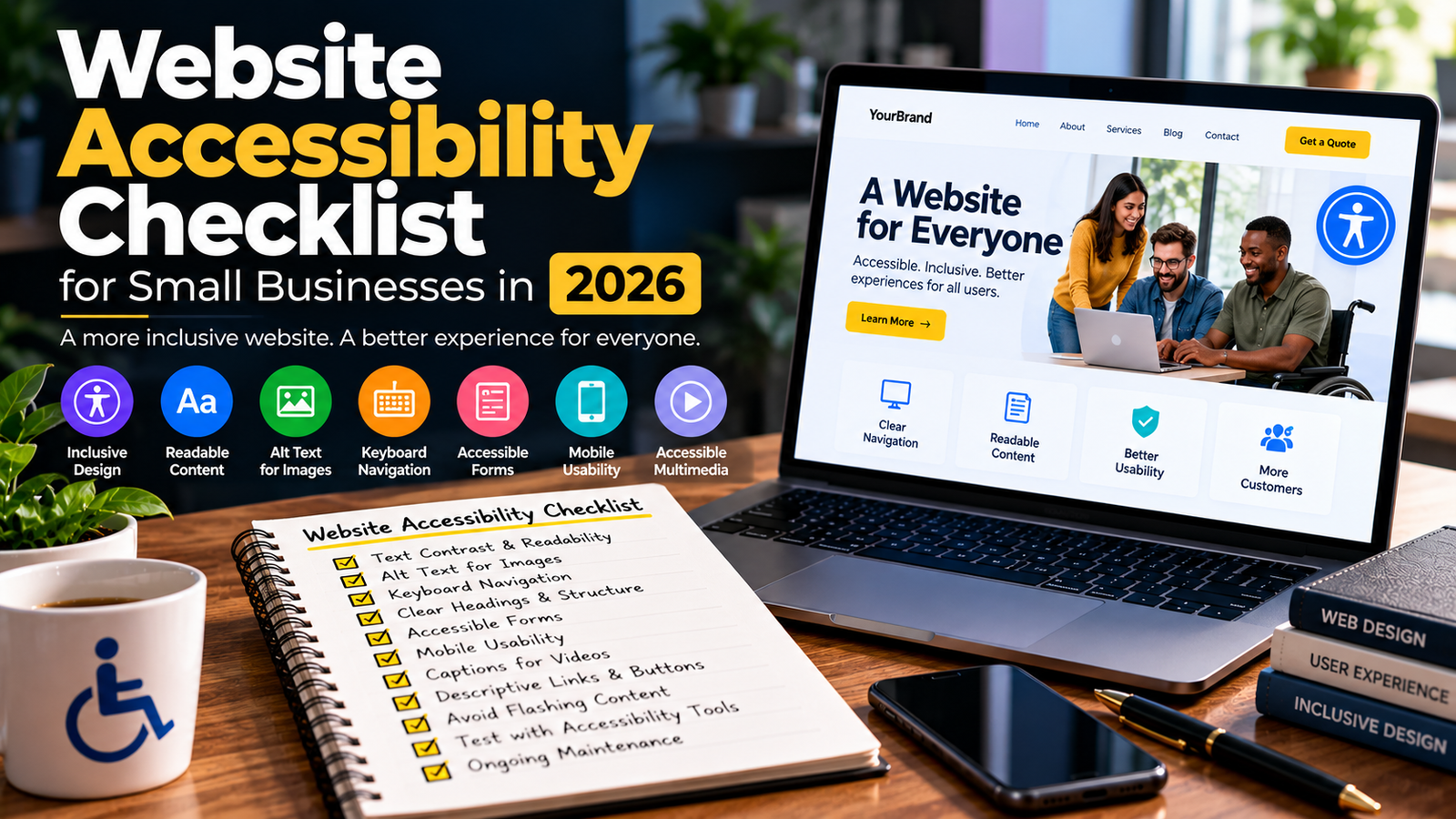
Website Accessibility Checklist for Small Businesses in 2026
A business website should be easy to use for as many people as possible, including people with visual, hearing, motor, and cognitive disabilities. If visitors struggle to read your content, navigate menus, complete forms, or understand buttons, they may have difficulty using your website at all.
Website accessibility helps remove these barriers. It improves the experience for people who use screen readers, keyboard navigation, browser zoom, captions, and other assistive technologies.
For small businesses, accessibility should be considered alongside web design, SEO, mobile responsiveness, and website performance. It is not just about adding an accessibility plugin or changing a few colors. It requires thoughtful design, accessible content, proper development, and regular testing.
In this guide, you’ll learn how to use a practical website accessibility checklist to identify common issues and improve your website in 2026.
What Is Website Accessibility?
Website accessibility means designing and developing websites so people with different abilities can perceive, understand, navigate, and interact with the content.
The Web Content Accessibility Guidelines (WCAG), published by the World Wide Web Consortium (W3C), provide an internationally recognized technical framework for web accessibility. WCAG 2.2 organizes its guidance around four principles: perceivable, operable, understandable, and robust.
These principles provide a useful foundation for building more accessible business websites.
Why Is Website Accessibility Important for Small Businesses?
Accessibility matters because your website may be the first place someone interacts with your business.
An inaccessible website can make it difficult for visitors to find information, request a quote, contact your team, book an appointment, or purchase a product.
Improving accessibility can help you:
Make website content easier to understand.
Support visitors who use assistive technologies.
Improve keyboard navigation.
Make forms easier to complete.
Create a more consistent mobile experience.
Reduce common usability barriers.
Support a more inclusive customer experience.
Accessibility is also relevant to legal and regulatory requirements, which vary by jurisdiction, business type, and circumstances. A checklist is a useful starting point, but it does not guarantee legal compliance.
1. Check Text Readability and Contrast
Visitors need to be able to read your content comfortably.
Light gray text on a white background, tiny fonts, and text placed over busy images can make a website difficult to use.
Accessibility checklist:
Use readable font sizes.
Choose clear, legible fonts.
Maintain sufficient contrast between text and background.
Avoid placing important text over visually busy images.
Don’t rely on color alone to communicate information.
Allow users to zoom without losing content or functionality.
Use comfortable line spacing and paragraph lengths.
WCAG 2.2 Level AA generally requires a contrast ratio of at least 4.5:1 for normal text and 3:1 for large text, subject to the standard’s exceptions.
A contrast checker can help you test your color combinations before publishing.
2. Add Meaningful Alt Text to Images
Alternative text helps communicate the purpose or information conveyed by an image to people who cannot see it.
For example, if a photograph shows a web developer working on a laptop, useful alt text might be:
“Web developer designing a business website on a laptop.”
However, not every image needs descriptive alt text. Decorative images should generally use empty alt text so assistive technology can skip them.
Accessibility checklist:
Add descriptive alt text to informative images.
Describe the purpose of functional images and linked graphics.
Avoid unnecessary keyword stuffing.
Use empty alt text for decorative images.
Provide text alternatives for informative charts and diagrams.
Check images added through page builders and plugins.
Remember that alt text should describe the image’s meaning in context, not simply list every visible object.
3. Make Your Website Keyboard-Friendly
Not everyone uses a mouse or touchscreen to navigate a website. Some visitors rely entirely on a keyboard or another input device.
Try navigating your website using the Tab, Shift + Tab, Enter, Space, and arrow keys where appropriate.
Accessibility checklist:
Make links and buttons keyboard-accessible.
Ensure users can move through interactive elements logically.
Display a visible focus indicator.
Prevent keyboard traps.
Make dropdown menus usable without a mouse.
Ensure modals and popups can be operated and dismissed.
Check that sticky headers don’t completely hide focused elements.
If you cannot reach or operate an important feature using the keyboard, that feature needs further investigation.
4. Use Clear Headings and Page Structure
Headings help visitors understand a page’s organization and find relevant information.
They also help screen-reader users navigate between sections.
Accessibility checklist:
Use one clear main page heading.
Organize major sections with H2 headings.
Use H3 headings for relevant subsections.
Keep heading levels logically organized.
Write descriptive headings.
Avoid using headings purely to change text size.
Use semantic HTML elements where appropriate.
For example, a service page might use this structure:
H1: WordPress Website Development
H2: Our WordPress Services
H2: Our Development Process
H3: Website Planning
H3: Design and Development
H2: Frequently Asked Questions
H2: Contact Us
A clear structure benefits both visitors and the people maintaining the website.
5. Improve Form Accessibility
Contact forms, quote requests, registration forms, and checkout pages are critical parts of many business websites.
If form fields aren’t clearly labeled or errors are difficult to understand, visitors may be unable to complete them.
Accessibility checklist:
Give every input field a clear label.
Explain which fields are required.
Use suitable input types.
Provide clear error messages.
Identify errors in text rather than color alone.
Preserve information when users correct errors.
Make form controls keyboard-accessible.
Explain the next step after submission.
Test CAPTCHA and spam-protection tools for accessibility barriers.
Don’t use placeholder text as the only label. It can disappear when users start typing and may not provide a reliable field description.
6. Make Links and Buttons Descriptive
Link text should explain where the link goes or what it does.
Generic labels such as “Click here” and “Read more” can be confusing when several links appear together.
Accessibility checklist:
Use meaningful link text.
Make button labels describe their actions.
Ensure links are visually distinguishable.
Provide accessible names for icon-only buttons.
Identify links that open files or external resources when useful.
Avoid using color as the only way to distinguish links.
Make clickable areas easy to identify and operate.
Instead of writing “Click here,” use a label such as “View our website design services.”
Clear labels help visitors understand the next step before interacting with an element.
7. Check Mobile Accessibility
A responsive website is not automatically an accessible website.
Visitors should be able to read content, operate controls, and complete important tasks on small screens.
Accessibility checklist:
Test pages at different screen sizes.
Make text readable without unnecessary horizontal scrolling.
Keep menus usable on mobile devices.
Provide sufficiently large and well-spaced controls.
Avoid overlapping buttons and text.
Check forms on mobile.
Ensure sticky elements don’t obstruct content.
Test zoom and text resizing.
WCAG 2.2 includes a minimum target-size criterion at Level AA, with defined exceptions. Review the actual requirements rather than assuming every control must meet one identical size rule.
8. Provide Captions and Alternatives for Multimedia
Videos and audio can contain valuable information, but not everyone can access that information through sound alone.
Accessibility checklist:
Add accurate captions to prerecorded videos with audio.
Provide transcripts where appropriate.
Include text alternatives for audio content.
Ensure media controls are keyboard-accessible.
Avoid unexpected autoplay.
Provide audio controls when sound plays automatically.
Describe important visual information when necessary.
Captions should communicate meaningful speech and relevant sounds, not simply display an incomplete summary of the video.
9. Make Navigation Consistent
Visitors should be able to understand where they are and how to move around your website.
Consistent navigation reduces confusion, particularly for people who use assistive technologies or revisit the site frequently.
Accessibility checklist:
Use clear navigation labels.
Keep important menus consistent across pages.
Provide a clear way to return to the homepage.
Make the current page or navigation state understandable.
Use descriptive page titles.
Avoid overly complicated dropdown menus.
Provide a logical reading and navigation order.
For a small business website, a simple menu such as Home, About, Services, Blog, and Contact may be easier to use than an unnecessarily complex navigation system.
10. Avoid Flashing Content and Unnecessary Motion
Animations can improve a design, but excessive movement can distract visitors or create accessibility problems.
Accessibility checklist:
Avoid content that flashes in ways prohibited by WCAG.
Provide pause or stop controls for certain moving content.
Respect reduced-motion preferences where appropriate.
Avoid unnecessary parallax effects.
Make sure animations don’t hide important information.
Keep loading animations from blocking essential actions unnecessarily.
Use motion to support the experience, not to make basic website functionality harder to access.
11. Make Error Messages Easy to Understand
Visitors may encounter errors when submitting forms, searching for information, or completing checkout.
An accessible website should explain what went wrong and how to fix it.
Accessibility checklist:
Explain errors in plain language.
Identify the field that needs attention.
Suggest how to correct the problem when possible.
Avoid relying only on red borders or icons.
Ensure errors are available to assistive technologies.
Preserve valid information when a form submission fails.
For example, “Enter a valid email address, such as name@example.com” is more helpful than simply displaying “Invalid input.”
12. Test Website Accessibility With Tools and Manual Checks
Automated accessibility tools can identify many common problems, but they cannot determine whether every page works well for every user.
Use a combination of automated checks and manual testing.
Useful tools and resources include:
You should also test the website manually.
Try completing important tasks using only a keyboard. Zoom the page, inspect form labels, review heading structure, and check whether error messages are understandable.
Automated scores alone do not establish WCAG conformance.
13. Review WordPress Themes, Plugins, and Page Builders
If your website uses WordPress, its theme, plugins, and page builder can affect accessibility.
Elementor widgets, popup tools, sliders, menus, and form plugins may introduce accessibility issues depending on how they are configured and used.
Accessibility checklist:
Choose themes with accessibility features.
Review plugin documentation.
Test menus and interactive widgets.
Check focus behavior in popups and modals.
Verify that form fields have proper labels.
Inspect custom HTML and CSS.
Test updates before deploying major changes.
Avoid relying on an accessibility overlay as a complete solution.
An accessibility plugin may provide useful features, but it cannot automatically fix every underlying problem in a website’s structure or behavior.
14. Create an Accessibility Maintenance Routine
Accessibility is an ongoing process. New pages, images, forms, plugins, and design changes can introduce new barriers.
Create a routine that fits your website’s size and complexity.
| Frequency | Suggested Tasks |
|---|---|
| Weekly | Check important forms, navigation, and newly published content |
| Monthly | Review key pages, contrast, links, and common accessibility issues |
| Quarterly | Perform broader keyboard and manual accessibility testing |
| After major updates | Retest menus, popups, forms, and interactive features |
For larger websites or sites with complex functionality, more frequent and comprehensive testing may be appropriate.
Final Thoughts
Website accessibility is an important part of building a usable, professional business website.
You don’t need to fix every issue in one day. Start by reviewing your homepage, contact page, main service pages, and any checkout or booking flows. Prioritize barriers that prevent visitors from understanding content or completing important tasks.
Use WCAG 2.2 as a technical reference, combine automated checks with manual testing, and revisit accessibility whenever your website changes.
A better website is not just visually appealing. It should also be understandable, navigable, and usable by as many people as possible.