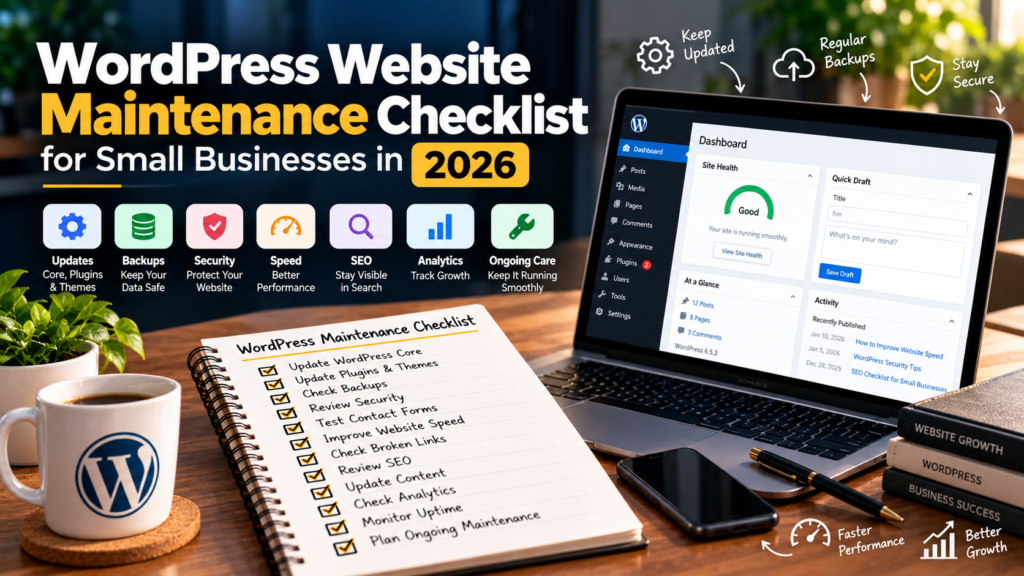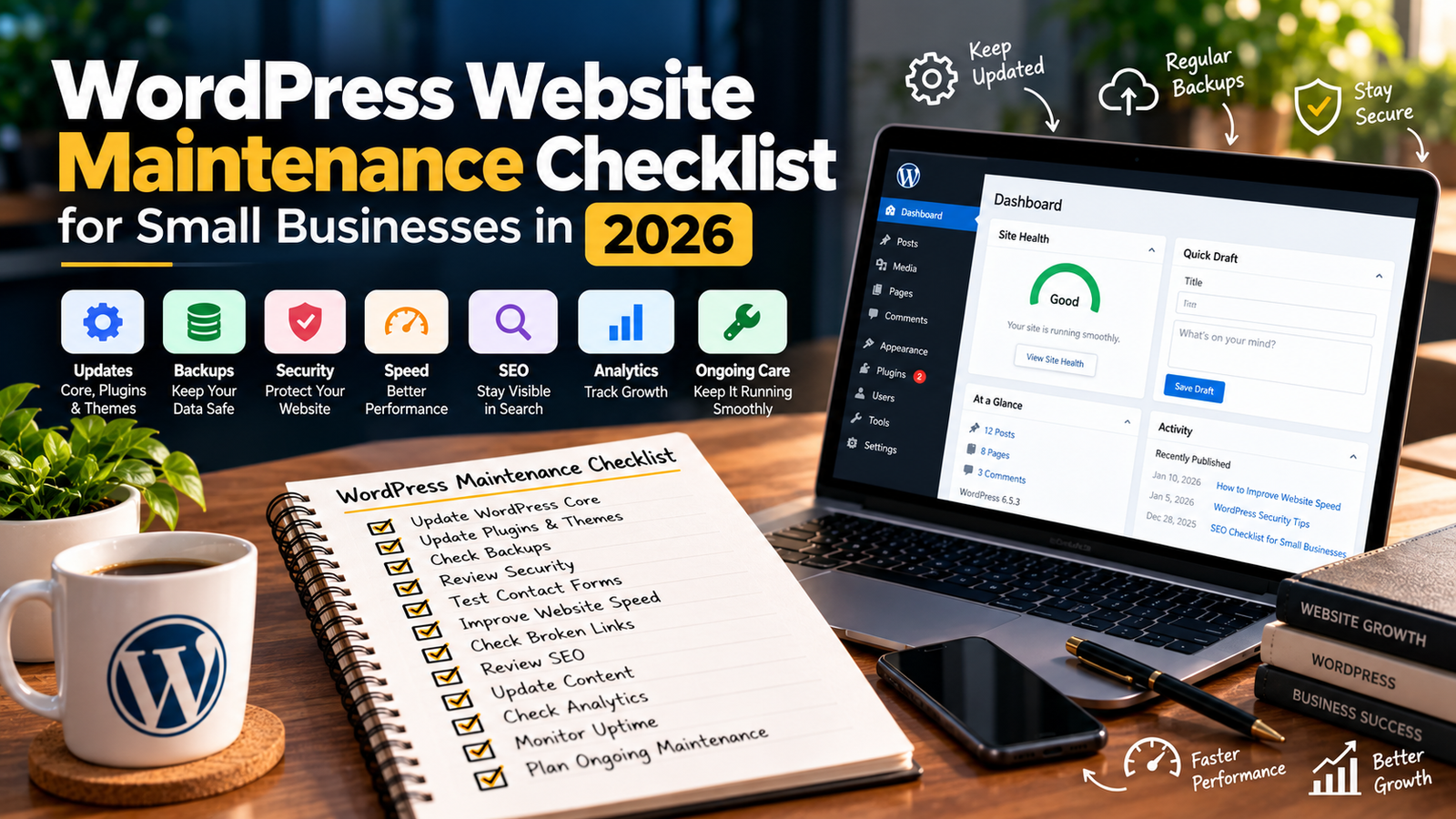
WordPress Website Maintenance Checklist for Small Businesses in 2026
A WordPress website needs regular maintenance to remain secure, fast, functional, and useful for visitors. Publishing a website is only the first step. Over time, plugins need updates, backups must be checked, forms can stop working, and outdated content can affect the user experience.
For small businesses, these problems can lead to lost enquiries, poor performance, security risks, and unnecessary repair costs.
The good news is that you don’t need to spend hours maintaining your website every day. A structured WordPress website maintenance checklist helps you organize important tasks and catch issues before they become bigger problems.
In this guide, you’ll learn what to check weekly, monthly, quarterly, and annually to keep your WordPress website running smoothly in 2026.
Why Is WordPress Website Maintenance Important?
Regular website maintenance helps you:
Protect your website against common security risks.
Keep WordPress core, themes, and plugins updated.
Reduce the risk of website errors and downtime.
Improve loading speed and user experience.
Keep contact forms and important features working.
Identify broken links and outdated content.
Monitor SEO performance and website traffic.
Protect your website data with reliable backups.
WordPress itself recommends scheduling maintenance activities, including software updates, backups, link checks, and general website housekeeping.
1. Keep WordPress Core Updated
WordPress updates can include security fixes, bug fixes, compatibility improvements, and new features.
Check your WordPress dashboard regularly for available updates. Before applying significant updates, make sure you have a recent backup and a way to restore the site if something goes wrong.
Checklist:
Check the current WordPress version.
Review available updates.
Back up the website before major changes.
Apply updates using a safe process.
Test important pages after updating.
Don’t assume that an update has worked correctly just because WordPress displays a success message. Verify that the website still functions as expected.
2. Update Plugins and Themes Safely
Plugins and themes provide much of a WordPress website’s functionality, but outdated or incompatible software can create problems.
Review your installed plugins and themes regularly.
Checklist:
Update actively maintained plugins.
Update the active theme.
Check compatibility before major updates.
Remove unused plugins and themes that are no longer needed.
Renew legitimate premium plugin licences.
Test forms, menus, layouts, and integrations after updates.
Avoid updating every component blindly on a business-critical website. For important websites, use a staging environment when possible, test the changes, and then deploy them to the live site.
3. Verify Website Backups
A backup is useful only if it can restore your website successfully.
Your backup plan should account for both website files and the database. Store copies somewhere separate from the live hosting environment so a hosting failure doesn’t destroy every copy.
Checklist:
Confirm scheduled backups are completing.
Back up website files and the database.
Keep copies in a separate storage location.
Review backup retention settings.
Test restoring a backup periodically.
Know how to recover the website if an update fails.
How frequently you back up depends on how often your site changes and how much data you could afford to lose.
For example, a frequently updated store may need more frequent backups than a small brochure website.
4. Check Website Security
Security should be an ongoing part of WordPress maintenance, not something you check only after a problem occurs.
Checklist:
Use strong, unique passwords.
Enable two-factor authentication where available.
Remove unnecessary administrator accounts.
Give users only the permissions they need.
Use HTTPS.
Keep WordPress, themes, and plugins updated.
Review security alerts and suspicious activity.
Use reputable security tools where appropriate.
Avoid nulled or pirated themes and plugins.
You should also check that your hosting environment uses supported software versions. WordPress’s Site Health screen can help identify configuration issues that require attention.
5. Monitor Website Uptime
If your website becomes unavailable, potential customers may not be able to contact your business.
Uptime monitoring can notify you when the site stops responding.
Checklist:
Check that the homepage loads.
Monitor uptime and downtime alerts.
Investigate recurring server errors.
Review hosting resource limits.
Confirm that important pages are accessible.
Check whether scheduled WordPress tasks are working when relevant.
If downtime happens repeatedly, investigate the underlying cause instead of simply restarting services whenever an error appears.
6. Test Contact Forms and Lead Generation
A website can look perfect while its contact form silently fails.
For a small business, that can mean losing valuable enquiries.
Checklist:
Submit a test through every important form.
Confirm that notification emails arrive.
Check spam folders and email delivery issues.
Verify that confirmation messages appear.
Test phone and email links.
Test WhatsApp buttons if your website uses them.
Check booking tools and third-party integrations.
Confirm that submissions are recorded where expected.
Test forms after plugin updates, redesigns, hosting changes, and other significant website changes.
7. Improve Website Loading Speed
Website performance affects how easily visitors can browse and interact with your pages.
Regularly review your site’s speed instead of assuming that a website will remain fast after launch.
Checklist:
Compress large images.
Use suitable modern image formats.
Remove unnecessary plugins and scripts.
Review caching configuration.
Check hosting performance.
Optimize fonts and other heavy assets.
Test important pages on mobile devices.
Review Core Web Vitals using appropriate tools.
Avoid installing multiple plugins that perform the same optimization task. Overlapping settings can create conflicts or make troubleshooting more difficult.
8. Review Mobile Responsiveness
Your website should work comfortably across different screen sizes.
Open the site on a phone and test the actual experience rather than relying only on a desktop preview.
Checklist:
Test the mobile navigation menu.
Check heading and paragraph readability.
Confirm that buttons are easy to tap.
Make sure forms are usable on small screens.
Check images and videos for layout problems.
Look for overlapping elements.
Test sticky headers, popups, and chat widgets.
Verify that important content isn’t hidden.
Pay particular attention to contact buttons, service pages, checkout flows, and other pages that support your business goals.
9. Check Broken Links and 404 Errors
Broken links can frustrate visitors and make important pages harder to reach.
Review internal links, external links, and your website’s 404 reports periodically.
Checklist:
Check links in navigation menus.
Test links in important service pages.
Review links in recent blog posts.
Find and fix broken internal links.
Update outdated external references.
Review important 404 errors.
Redirect permanently moved pages when appropriate.
Don’t redirect every missing URL to the homepage. Use a relevant destination when one exists, and preserve useful URL structures whenever possible.
10. Review Website SEO
Website maintenance should include checks for technical SEO and content quality.
Checklist:
Review Google Search Console for indexing issues.
Check important pages for accidental noindex settings.
Confirm the XML sitemap is accessible.
Review robots.txt when changes are made.
Check canonical tags on important pages.
Fix broken internal links.
Review page titles and meta descriptions.
Check that images have appropriate alternative text.
Update outdated information.
Monitor organic traffic and important landing pages.
SEO maintenance isn’t about changing every page every month. Focus on genuine issues and improvements that help search engines and visitors understand your content.
11. Update Old Content
Old content can become inaccurate, irrelevant, or less helpful over time.
Review your important pages and blog posts to see whether they still meet visitors’ needs.
Checklist:
Update outdated facts and examples.
Replace obsolete screenshots.
Correct broken references.
Improve unclear explanations.
Add relevant internal links.
Remove redundant information.
Update calls to action where necessary.
Confirm that service descriptions match your current business.
Make meaningful improvements rather than changing publication dates simply to make an article look fresh.
12. Clean Up the WordPress Dashboard
Over time, a WordPress website can accumulate unnecessary plugins, themes, drafts, spam comments, and unused media.
A periodic cleanup helps make site management easier.
Checklist:
Remove plugins you no longer need.
Delete unused themes when safe to do so.
Review spam comments.
Remove unnecessary test pages.
Organize media files where practical.
Review inactive user accounts.
Check database cleanup options carefully.
Always keep a backup before deleting data or running database cleanup operations. Some apparently unused content may still be referenced elsewhere.
13. Check Analytics and Conversion Tracking
Traffic alone doesn’t tell you whether your website is helping your business.
Review analytics to understand how visitors discover your site and what they do next.
Checklist:
Confirm analytics is collecting data.
Review your most important landing pages.
Monitor traffic sources.
Test conversion events.
Track contact-form submissions.
Check phone, email, and WhatsApp clicks where relevant.
Review leads or sales against website activity.
Investigate sudden changes in traffic.
Use the results to identify pages that need better content, stronger calls to action, or a smoother user experience.
14. Review Hosting and Domain Details
Your hosting account and domain registration are essential parts of your website infrastructure.
Checklist:
Check domain renewal dates.
Review hosting renewal dates.
Confirm SSL is active.
Monitor available storage and resource limits.
Check PHP and other server software support.
Review email delivery configuration.
Keep account recovery information current.
Confirm that you have access to backups and essential accounts.
Make sure your business controls its domain registration and has appropriate access to its hosting account.
15. Check Accessibility and Usability
A website should be understandable and usable by as many visitors as reasonably possible.
Checklist:
Use descriptive headings.
Check text contrast.
Add meaningful alt text to informative images.
Label form fields clearly.
Make sure navigation can be used with a keyboard.
Use descriptive link text.
Check error messages on forms.
Review accessibility issues with suitable testing tools.
Automated tools can identify some problems, but they won’t detect every usability or accessibility issue. Manual testing is also important.
16. Review Website Performance After Major Changes
A plugin update, theme change, new tracking script, or redesign can affect the website in unexpected ways.
After a major change, check the pages and functions most important to your business.
Checklist:
Open the homepage and key landing pages.
Test contact forms and booking tools.
Check navigation on desktop and mobile.
Review page speed.
Look for layout problems.
Check analytics and conversion tracking.
Review error logs if something appears broken.
Confirm that backups remain available.
This final verification helps catch issues before visitors encounter them.
WordPress Website Maintenance Schedule
Use this sample schedule as a starting point. Adjust the frequency based on your website’s activity, risk, and business importance.
| Frequency | Maintenance Tasks |
|---|---|
| Weekly | Review backups, urgent updates, uptime alerts, and important forms |
| Monthly | Check performance, security alerts, analytics, links, and lead tracking |
| Quarterly | Review content, SEO, users, plugins, hosting resources, and accessibility |
| Annually | Review domain and hosting arrangements, licences, website goals, and the overall maintenance plan |
Security updates and critical problems should be handled promptly rather than waiting for a scheduled monthly review.
Should You Maintain Your WordPress Website Yourself?
You can handle many routine tasks yourself if you have the time, knowledge, and a reliable backup process.
However, professional maintenance may be worth considering if your website generates regular leads or sales, uses complex integrations, or supports important business operations.
A website maintenance service may cover updates, backups, security monitoring, uptime checks, performance reviews, troubleshooting, and technical support. Always confirm exactly what the plan includes.
Final Thoughts
WordPress website maintenance doesn’t need to be complicated, but it does need to be consistent.
Regular updates, verified backups, security checks, performance reviews, working forms, and accurate content help keep your website useful and dependable.
Use this WordPress website maintenance checklist to create a routine that fits your business. Start with backups, updates, security, and essential website functions, then build in SEO, performance, and content reviews.
A well-maintained website isn’t just easier to manage. It’s better prepared to support your business as it grows.